Doji Scanner
Setup guide
What It Does
The Doji Scanner monitors CME futures (ES, NQ, GC, SI) in real-time for Doji and Spinning Top candlestick patterns that form at or near VWAP. When a pattern is detected, the bot sends a formatted alert to your Discord server with the signal direction, risk level, and key price levels.
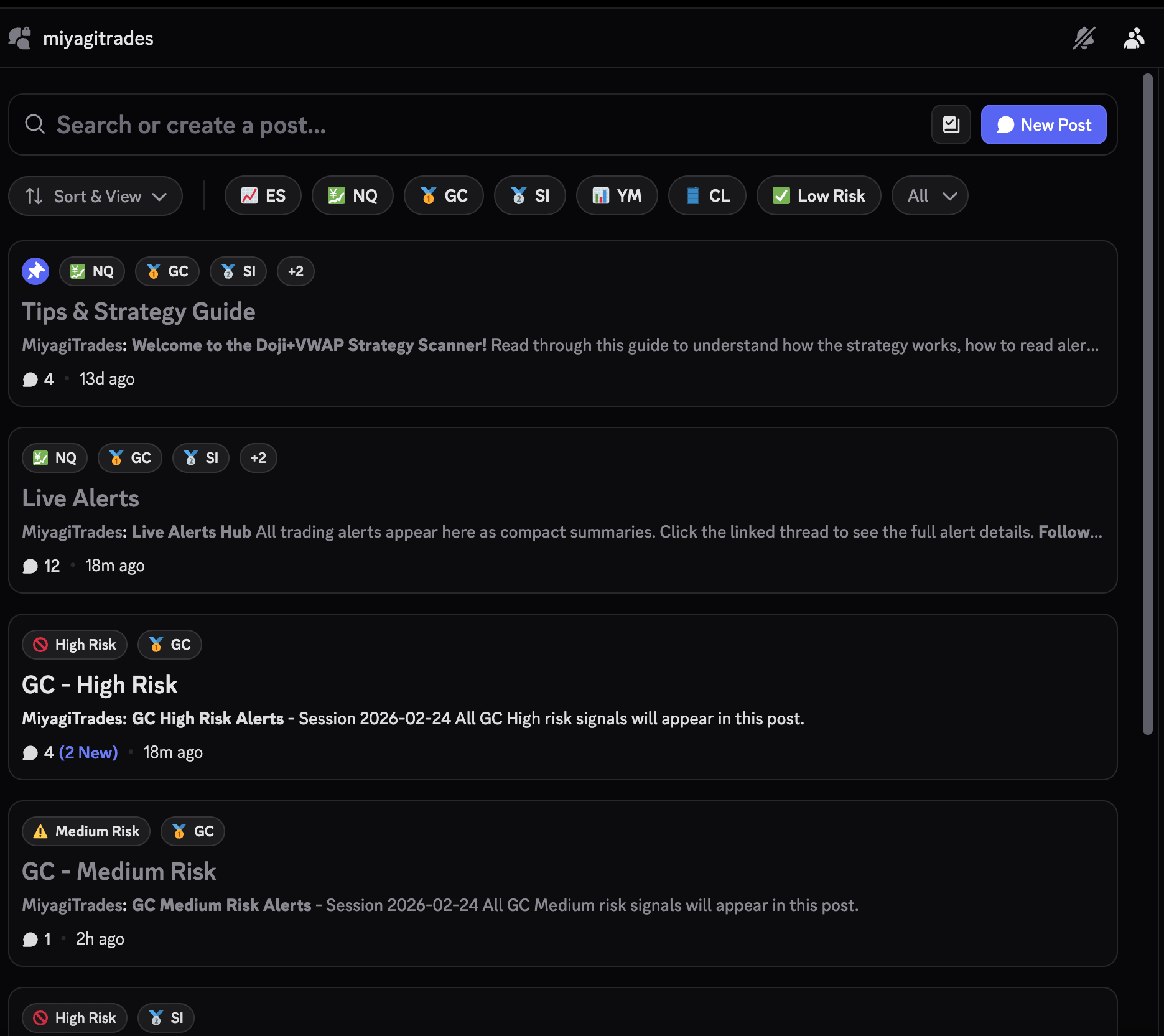
Alerts are organized in a forum channel with one post per symbol and risk level, making it easy to track signals without channel clutter.
1. Invite the Bot
After your subscription is active, use the invite link from your dashboard to add the bot to your Discord server. You must have Manage Server permission in that server.
The bot will request permissions to manage channels, send messages, embed links, manage roles, and create forum posts. Accept all requested permissions for full functionality.
Important: Category Permissions
If your server uses private categories (where @everyone has View Channels denied), the bot's server-wide permissions are overridden and it won't be able to see or use channels inside them. Discord does not allow bots to modify permissions on channels they can't access, so this must be done manually before running setup.
For each category that contains your disclaimer or forum channel: right-click the category → Edit Category → Permissions → click + → add the bot's role → enable all of the following:
- View Channels
- Manage Channels
- Manage Webhooks
- Send Messages
- Send Messages in Threads
- Manage Threads
- Manage Messages
- Embed Links
- Read Message History
- Manage Roles
Category-level overrides take priority over server-wide role permissions. Without these, the bot cannot create posts, manage tags, or configure the forum — even if the permissions are enabled on the bot's role.
2. Initial Setup
Run the setup command to create the access role, post the disclaimer, and configure the forum channel all at once:
/setup disclaimer_channel:#your-channel forum_channel:#your-forum role_name:TraderCreates a role (default name "Trader"), posts a disclaimer in the specified channel, and configures the forum channel for alerts. Users must click "I Agree to Terms" to receive the role and gain access to alerts.
The forum_channel parameter is optional — you can set it later with /set_forum_channel.
Tip: Create a dedicated forum channel (e.g., #doji-alerts) before running setup. Restrict posting permissions so only the bot can create posts.
3. How Alerts Work
Once configured, alerts are fully automatic. Here's what to expect:
Forum Posts
Each alert creates a post in your forum channel tagged with the symbol and risk level (e.g., "ES - Medium Risk"). Multiple alerts for the same symbol and risk level are grouped into the same post.
Color-Coded Signals
Bullish signals appear in green, bearish in red. High probability setups use cyan (bullish) and magenta (bearish) for quick visual scanning.
Auto-Cleanup
Forum posts are automatically cleaned up at the end of each trading session, keeping your channel fresh for the next session.
4. Session Schedule
The bot follows the CME futures trading schedule:
Trading Hours
Sunday 6:00 PM ET through Friday 5:00 PM ET, with a daily maintenance window from 5:00 – 6:00 PM ET.
Session Disclaimer
A disclaimer is automatically posted at the start of each session (6:00 PM ET, Sunday – Thursday). Users must agree each session to maintain access.
5. Admin Commands
These commands require Administrator permission in your server:
/statusView current bot configuration, uptime, forum post count, and connected channels.
/test_alertSend a test alert to verify your forum channel is configured correctly. Useful after initial setup.
/start_alerts / /stop_alertsEnable or disable alert delivery to your server without removing the bot.
/cleanupManually clean up all forum posts from the current session.
/send_disclaimerManually post the session disclaimer if it was missed or you need to re-send it.
/toggle_notificationsToggle role mentions on or off. Mentions are on by default — users with the agreed role will be @pinged in the Live Alerts hub when new signals appear. Use this to switch to silent mode.
/rename_alert_role new_name:YourRoleNameRename the role that grants access to alerts (e.g., change "Trader" to "VIP").
Troubleshooting
No alerts appearing?
Run /status to check that alerts are enabled and a forum channel is configured. Also verify the bot has permission to create posts and manage threads in the forum channel.
Commands not showing up?
Make sure the bot has "Use Slash Commands" permission in your server. If commands still don't appear, try kicking and re-inviting the bot.
Users can't see alerts?
Users need the agreed role to view alerts. Make sure they've clicked "I Agree to Terms" on the disclaimer. You can re-send it with /send_disclaimer.
Still need help?
Email us at support@miyagitrades.com and we'll respond within 24 hours.